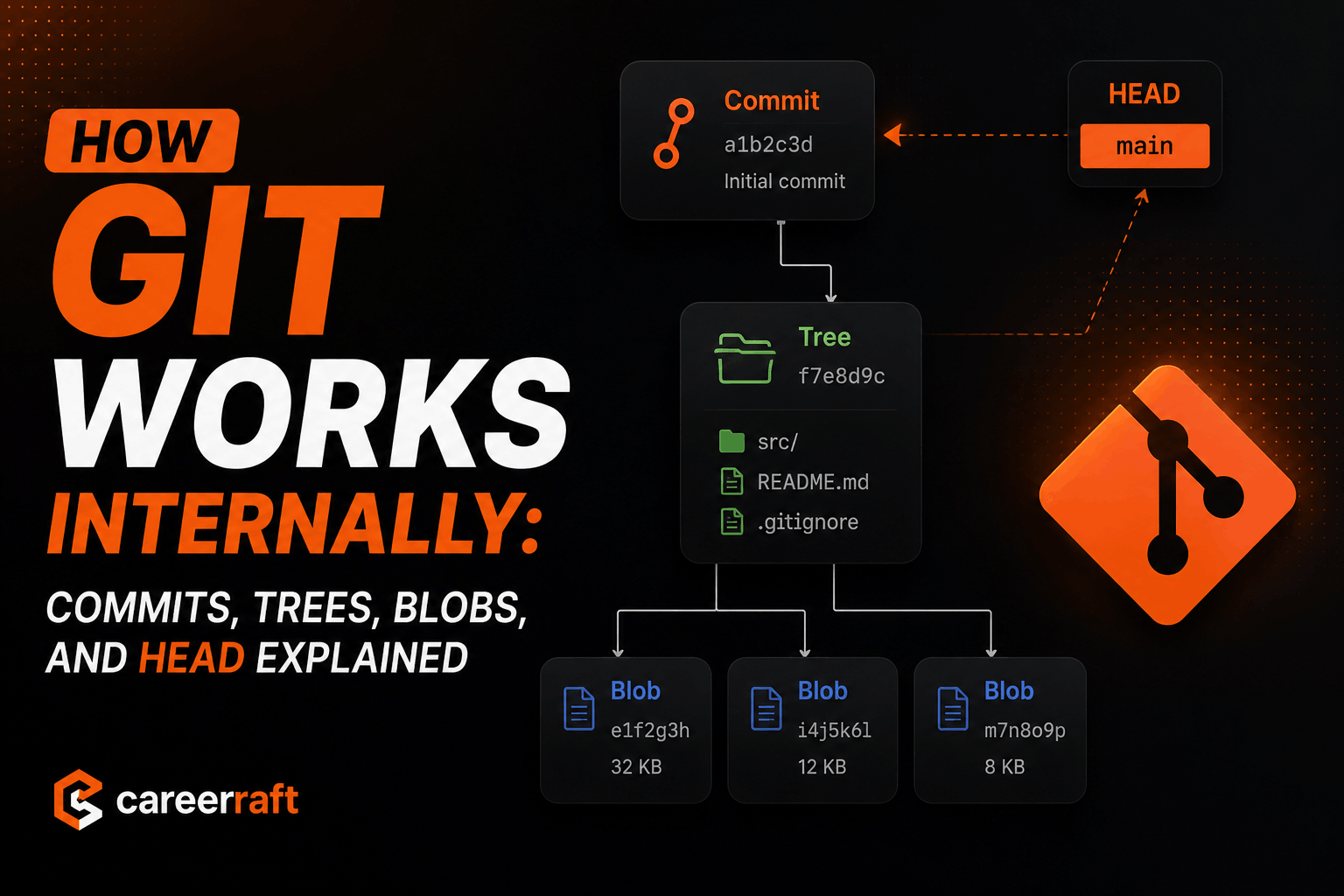
Most developers use Git daily, but very few understand how Git actually works internally.
Commands like git commit, git checkout, and git rebase feel magical until something goes wrong.
Once you understand Git's internal model — Blobs, Trees, Commits, and HEAD — Git becomes logical, predictable, and easy to debug.
This blog explains Git internals in the simplest possible way, with clean diagrams.
Git Is Not a File Tracker — It's a Snapshot System
Git does not store file changes line by line like traditional version control systems.
Instead, Git:
- Takes a snapshot of your project
- Stores that snapshot as objects
- Links snapshots together using hashes
At its core, Git is a content-addressable database.
All Git data lives inside:
.git/objects/
The Four Core Git Objects
Git internally works using four object types:
- Blob → File content
- Tree → Directory structure
- Commit → Snapshot + history
- HEAD → Pointer to current position
Let's understand them one by one.
Blob: How Git Stores File Content
A Blob stores the content of a file, nothing else.
Important points
- No filename
- No folder path
- No permissions
- Only file data
Example
hello.txt → "Hello World"
Git stores this as:
Blob (hash: a1b2c3)
Content: "Hello World"
If another file has the same content, Git reuses the same blob.
file1.txt → Blob X
file2.txt → Blob X
✔ Saves space
✔ Makes Git fast
Tree: How Git Stores Folders
A Tree object represents a directory.
It contains:
- File names
- Folder names
- Permissions
- Pointers to blobs and other trees
Example Project Structure
project/
├── index.html
├── app.js
└── src/
    └── main.js
Internally Stored as
Tree (root)
├── index.html → Blob A
├── app.js     → Blob B
└── src        → Tree C
                 └── main.js → Blob D
Trees connect filenames to blobs.
Commit: A Complete Snapshot
A Commit represents a complete snapshot of the project at a moment in time.
Each commit contains:
- Pointer to the root tree
- Parent commit(s)
- Author & timestamp
- Commit message
Commit Structure Diagram
Commit (C2)
│
├── Tree (root)
│   ├── Blob
│   ├── Blob
│   └── Tree
│
└── Parent Commit (C1)
⚠ Important:
Commits do NOT store changes. They store snapshots.
How Git Creates a Commit (Internally)
When you run:
git commit -m "Initial commit"
Git performs these steps:
- Files → converted into Blobs
- Blobs → organized into Trees
- Tree → wrapped inside a Commit
- Commit → saved using a SHA-1 hash
- Branch pointer → moved forward
Nothing is overwritten. Git only adds new objects.
HEAD: Where You Are Right Now
HEAD is a pointer that tells Git: "You are currently here"
Usually, HEAD points to a branch, and the branch points to a commit.
Normal State
HEAD → main → Commit C3
Meaning:
- You are on main
- main points to commit C3
Detached HEAD (Simply Explained)
If you checkout a commit directly:
git checkout C2
HEAD now points directly to a commit, not a branch.
HEAD → Commit C2
This is called Detached HEAD.
⚠ Problem:
- New commits are not attached to any branch
- They can be lost
✔ Solution:
git switch -c new-branch
Branches Are Just Pointers
A Git branch is not a copy of code.
It is simply a pointer to a commit.
Example
main → Commit C3
dev  → Commit C2
When you commit on main:
main → Commit C4
dev  → Commit C2
- ✔ Branch creation is instant
- ✔ Switching branches is fast
- ✔ Git history becomes flexible
Complete Internal View
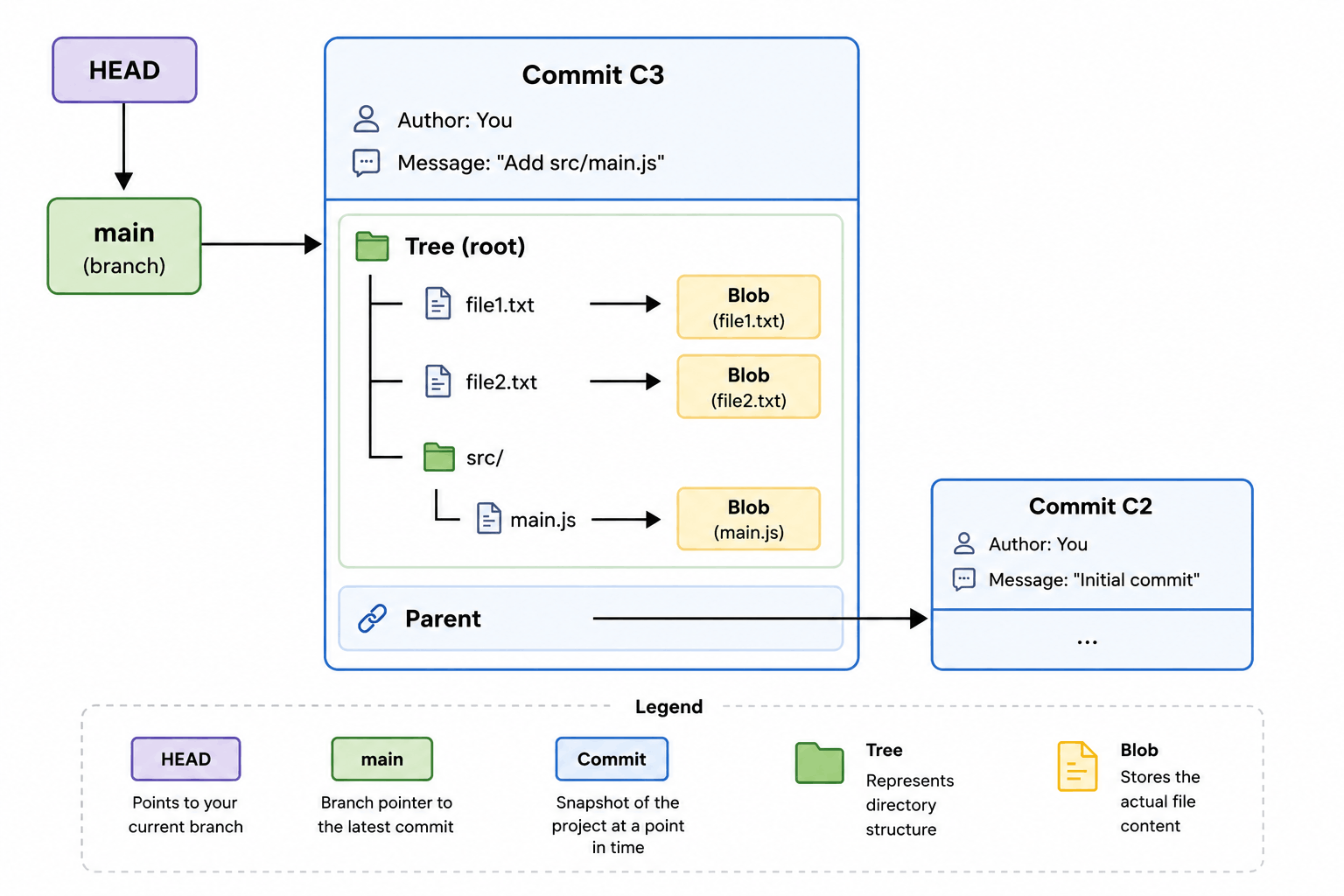
HEAD
 │
 ▼
main ───► Commit C3
          │
          ├── Tree
          │   ├── Blob (file1)
          │   ├── Blob (file2)
          │   └── Tree (src)
          │        └── Blob (main.js)
          │
          └── Parent ─► Commit C2
This is Git internals in one picture.
Why Understanding Git Internals Matters
Once you understand this model:
- git rebase makes sense
- git reset becomes predictable
- Recovering lost commits becomes easy
- Git stops feeling scary
You stop memorizing commands and start understanding behavior.
Final Takeaways
- Git stores snapshots, not file diffs
- Blobs = file content
- Trees = folder structure
- Commits = snapshot + history
- Branches = pointers
- HEAD = current position
If you understand this, you understand Git.